IPTVGiant setup guide — IBO Player
A complete walkthrough from downloading the app to hiding the categories you never watch. Most people finish in under ten minutes.
IPTVGiant runs exclusively on IBO Player. We standardised on a single application deliberately: it installs on virtually every platform, it handles Xtream Codes lines reliably, and it means our support team knows every menu in it by heart. If you have used another player before, the flow here will feel familiar but the activation step is different — read step 2 carefully.
Before you begin: have your IPTVGiant credentials to hand (they arrive on WhatsApp after checkout), and make sure the device is on the internet. A wired connection beats Wi-Fi for 4K.
The six steps, start to finish
Install IBO Player on your device
Open the app store on your platform — Amazon Appstore on a Fire TV Stick, Google Play on Android, the Samsung or LG store on a smart TV — search for IBO Player and install it. On Windows and macOS, download the desktop build from the developer's official site.
Note your MAC address and device key
Launch IBO Player. The first screen shows a MAC address and a device key. Write both down exactly as displayed, including the colons. Nothing works until these are registered against your line.
Send those details to IPTVGiant
Email or WhatsApp your MAC address and device key to our activation desk together with the email you ordered under. We register the device against your subscription and confirm when it is live — usually within fifteen minutes.
Add your playlist on the IBO portal
Go to the IBO Player device portal shown on your screen, enter the same MAC address and device key, then add a playlist. Choose "Xtream Codes" and paste the server URL, username and password we sent you. Save it.
Reload the app and start watching
Return to the television and restart IBO Player. It pulls the playlist automatically and the Live TV, Movies and Series tiles populate. Give the EPG a couple of minutes to finish downloading the guide data.
Tidy up the Live TV section
Open Settings, then Manage Categories, and hide the country packages you will never watch. This turns a list of thousands into the twenty or thirty channels you actually use. Add favourites with the star button on any channel.
Platform notes
Amazon Fire TV Stick
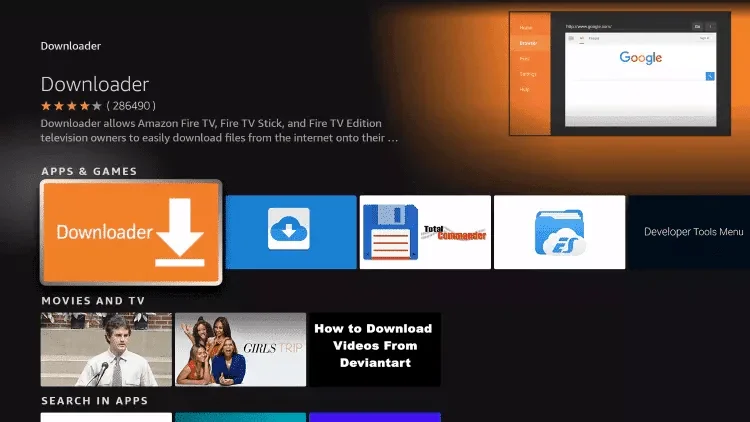
IBO Player is in the Amazon Appstore, so no sideloading is required. From the Fire TV home screen, open Find → Search, type "IBO Player", and install. If you prefer the Downloader route for other utilities, the interface looks like this:
Samsung and LG smart TVs
Open the Samsung Apps or LG Content Store, search for IBO Player and install it. This is where IBO genuinely earns its place: non-Android televisions have very few decent options, and this is the most dependable of them.
Android phones, tablets and boxes
Install from Google Play. On Android TV boxes the remote navigates the same layout as the phone build, so the instructions above apply unchanged.
Windows and macOS
Download the desktop build from the developer's official website, install it, and follow the same MAC address and device key process. Useful for testing your line quickly before you set up the television.
Getting the most out of the app
Live TV
The Live TV tile is where you will spend most of your time. Use Manage Categories to hide unused country packages, star your regular channels into Favourites, and use the search field rather than scrolling — with 16,905+ streams in the line-up, search is much faster.
Movies and series
The VOD sections are organised by genre and updated almost daily. Series are grouped by season and episode, and playback resumes where you stopped.
Settings worth changing
- Network — confirms connectivity; check here first when a stream stalls.
- Parental control — PIN-locks adult categories.
- Live TV player / VOD player — switch decoder if a specific channel stutters.
- Manage categories — the single most useful setting in the app.
- Auto boot on start — launches IBO Player when the TV powers on.
- Clear cache — the first fix to try for odd behaviour.
Still stuck? Message our technicians on WhatsApp from the contact page. Activation issues are nearly always a mistyped MAC address, and we resolve most of them in a single exchange.
Installation questions
Which devices is IBO Player available for?
Android phones, tablets and TV boxes, Amazon Fire TV Stick, Samsung Tizen and LG webOS smart TVs, Windows, macOS and MAG/STB set-top boxes. That covers essentially every screen a Canadian household already owns.
Can I record programmes with IBO Player?
No. IBO Player has no recording function. If a built-in DVR is essential to you, this is the one limitation worth knowing about before you order.
Is IBO Player free?
The app offers a short no-cost evaluation period, after which the developer charges a small one-time licence fee per device. That fee goes to the app developer, not to IPTVGiant, and it is separate from your subscription.
Can I watch on two screens at once?
No. IBO Player has no multi-screen mode, and each IPTVGiant subscription authorises one concurrent stream in any case. A second screen needs a second subscription.
Why does the channel list look disorganised?
Because every country package loads by default. Open Settings → Manage Categories and hide what you do not need. Five minutes there transforms the experience.
The app says my playlist is not activated — what now?
Almost always the MAC address was typed with a wrong character. Re-check it against the app's home screen and resend it to us. If it still fails, message us from the contact page and we will look at the line from our side.
Got the app — now get the channels
Start on the CA$10.99 intro month and we will activate your device today.